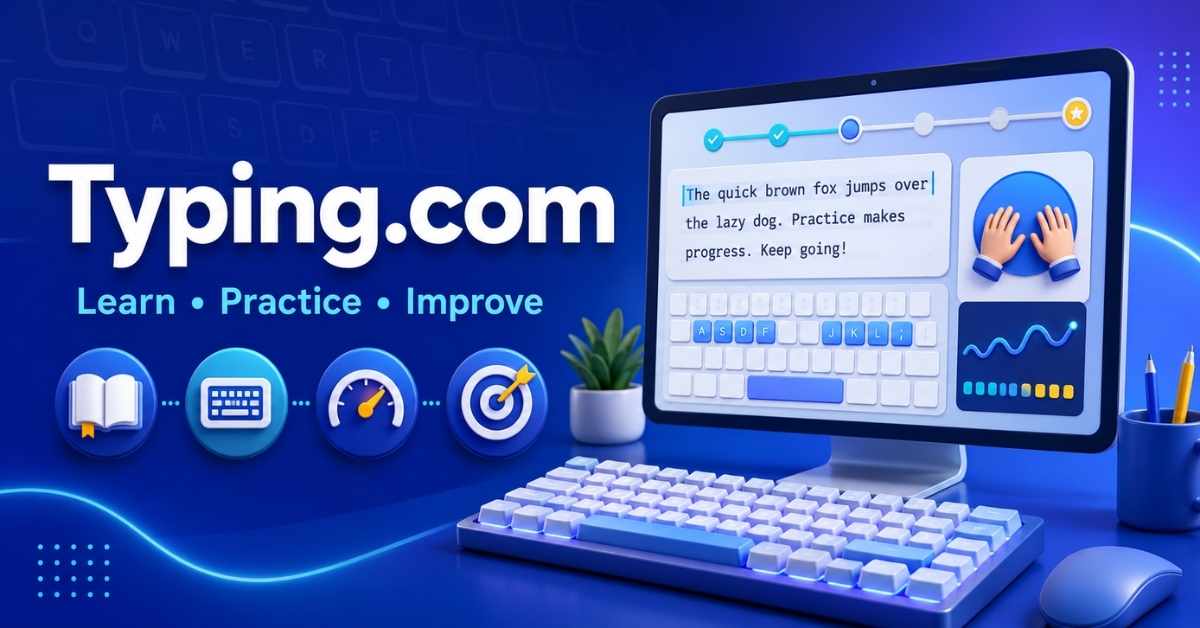
Typing.com is a free online learning platform that teaches touch typing, keyboard accuracy, finger placement, and typing speed through guided lessons, games, tests, and classroom activities. Its core program is free, while Typing.com PLUS offers an ad-free experience, additional games, longer progress retention, advanced reports, and other premium tools.
The platform is built mainly for K–12 students and teachers, but homeschoolers and adults can also use it. The bigger question is not whether Typing.com works at all—it can—but whether its teaching style, advertisements, privacy practices, and paid features suit your needs.
Typing.com at a Glance
| Feature | Details |
|---|---|
| Platform type | Online typing tutor and classroom platform |
| Core cost | Free |
| Paid option | Typing.com PLUS |
| Best for | Students, beginners, homeschoolers, and teachers |
| Adult-friendly | Yes, although much of the design is school-focused |
| Main activities | Lessons, tests, games, and timed practice |
| Skills measured | Words per minute and accuracy |
| Teacher tools | Classes, assignments, reports, and progress monitoring |
| Advertisements | May appear on free accounts |
| Languages | English, Spanish, and Portuguese |
| Overall verdict | A strong free starting point for structured typing practice |
What Is Typing.com?
Typing.com is a web-based keyboarding and digital literacy program operated within the Teaching.com education ecosystem. It combines traditional typing instruction with interactive exercises, classroom management, technology lessons, and progress reporting.
Typing.com reports serving millions of students and hundreds of thousands of teachers. Its popularity comes partly from its low barrier to entry: learners can begin with free lessons, while educators can create classes, assign activities, and monitor student performance.
The curriculum extends beyond learning where the keys are. Depending on the grade level and account type, learners may encounter:
- Touch-typing and keyboarding lessons
- Typing games and timed tests
- Digital citizenship
- Computer and technology foundations
- Word processing, spreadsheets, and presentations
- Creative writing
- Test preparation
- AI literacy
- Introductory HTML, CSS, and JavaScript
Who Should Use Typing.com?
Students can follow a structured sequence instead of practicing random paragraphs. Younger learners may appreciate the games, achievements, and visible progress.
Teachers can organize classes, assign lessons, monitor WPM and accuracy, and review completed activities. Schools can also investigate roster and student information system integrations.
Homeschoolers can use the platform as a flexible keyboarding curriculum without immediately purchasing software.
Adults can use the same lessons to correct hunt-and-peck habits, improve workplace typing, or rebuild accuracy. However, some adults may find the school-oriented presentation less appealing than a minimalist typing tool.
How Typing.com Typing Lessons Work
The Typing.com typing curriculum usually begins with basic key placement before moving into words, sentences, punctuation, numbers, and longer passages. This progression helps learners build muscle memory instead of relying on sight.
Starting With a Baseline Test
Before beginning, take both a one-minute and a three-minute typing test. Record:
- Words per minute
- Accuracy percentage
- Frequently missed keys
- Whether you looked at the keyboard
- Whether you used the correct fingers
A one-minute test can produce an unusually high or low score. A longer test gives a more realistic picture of sustainable typing speed.
Moving Through the Lessons
Beginners normally start with the home-row keys and proper finger placement. Later lessons introduce additional letters, capitalization, punctuation, numbers, and more complex text.
Typing.com also uses games to make repetition less tedious. Games can improve engagement, but they should support—not replace—structured practice. A learner who only plays speed-focused games may become faster while continuing to use poor technique.
Understanding WPM and Accuracy
WPM, or words per minute, measures speed. Accuracy measures how much of the text was entered correctly.
Speed attracts attention, but accuracy creates lasting improvement. Typing quickly with frequent errors teaches the hands to repeat those errors. A better progression is:
Finger placement → accuracy → rhythm → sustainable speed
Is Typing.com Free?
Typing.com free access includes the core lessons, typing tests, practice activities, selected games, and basic classroom functions. This makes it possible to learn touch typing without purchasing a subscription.
The free experience may include advertisements and limitations involving advanced reporting, customization, support, and progress retention.
Typing.com Free vs PLUS
| Feature | Free version | Typing.com PLUS |
|---|---|---|
| Core typing lessons | Included | Included |
| Typing tests | Included | Included |
| Standard games | Included | Included |
| Advertisements | May appear | Ad-free |
| Exclusive games | Limited | Included |
| Custom lessons | Limited | Expanded |
| Advanced reports | Limited | Included |
| Extra practice | Standard | Expanded |
| Progress retention | May be limited | Longer or unlimited |
| Support | Standard | Priority support |
| Best for | Casual and beginner use | Serious learners, teachers, and schools |
Current official comparison material indicates that some free student activity may be retained for only up to 70 days, while PLUS provides longer retention. Teachers planning a semester or full academic year should verify this before choosing a plan.
Pricing can vary by individual, classroom, school, district, and subscription duration. Check the current checkout page before publishing or purchasing because old reviews may still refer to the former Typing.com Premium name. The paid product is now called Typing.com PLUS.
Is Typing.com PLUS Worth It?
PLUS may be worthwhile when you need:
- An ad-free learning environment
- Long-term student records
- Advanced teacher reporting
- Custom lessons and assignments
- Additional games
- Priority support
- School or district management features
A casual learner who only wants to develop touch-typing technique should begin with the free version. Paying will not automatically improve typing speed; consistent, focused practice still matters most.
Can Typing.com Improve Your Typing Speed?
Typing.com can help improve speed when the learner follows the correct technique and practices consistently. It cannot guarantee a specific WPM because results depend on starting ability, age, coordination, practice quality, and existing habits.
Learners who type with one or two fingers may initially become slower when switching to proper touch typing. This is normal. The brain and hands need time to build new key-to-finger connections.
A Practical 15-Minute Routine
Use this routine five days per week:
- Spend two minutes checking posture and hand position.
- Complete eight minutes of structured lessons.
- Practice difficult keys for three minutes.
- Finish with a two-minute accuracy exercise.
- Record WPM and accuracy once each week.
Weekly measurement is more useful than repeatedly testing after every lesson. Constant speed testing can distract from technique.
A Simple 30-Day Progress Log
| Checkpoint | WPM | Accuracy | What to observe |
|---|---|---|---|
| Baseline | Record score | Record score | Technique and difficult keys |
| Day 7 | Record score | Record score | Early adjustment |
| Day 14 | Record score | Record score | Errors and consistency |
| Day 30 | Record score | Record score | Sustainable improvement |
Do not invent improvement figures. Real progress data is more useful than promises such as “double your typing speed in a week.”
What Typing.com Does Well
Structured Learning
The lesson sequence gives beginners a clearer path than websites that only provide random tests. Learners can move from home-row practice to complete passages without deciding what to study next.
Immediate Feedback
WPM, accuracy, lesson completion, and difficult-key feedback make progress visible. This can reduce the frustration of practicing without knowing whether technique is improving.
Classroom Tools
Teachers can create classes, distribute assignments, review student activity, and use automatic grading. The curriculum also connects keyboarding with broader technology skills.
Typing.com references educational frameworks and entities such as Common Core, ISTE, CSTA, AI4K12, digital citizenship standards, and state-level requirements.
Broad Curriculum
The addition of cross-curricular typing, computer applications, AI literacy, coding, creative writing, and technology foundations gives schools more value than a basic speed-testing website.
Where Typing.com Can Be Frustrating
No learning platform suits everyone. Common concerns include:
- Advertisements on free access
- Games that feel repetitive or distracting
- Lessons that appear too childish for adults
- Temporary slowdowns while learning correct technique
- Reports of lag or lost progress
- Correct keystrokes allegedly being marked wrong
- Confusing usernames or class codes
- Limited progress retention on free accounts
- Unclear public pricing for some PLUS plans
At the time of research, Typing.com had a relatively low Trustpilot rating based on a small number of reviews compared with its reported user base. Some users described meaningful WPM gains, while others reported technical problems and continued reliance on two-finger typing.
These reviews reveal possible issues, but they do not represent every learner. Recent, detailed reviews that identify the device, browser, lesson, and account type are more useful than short emotional complaints.
Is Typing.com Safe for Students?
Typing.com presents several meaningful privacy and security signals. Students generally do not need to provide an email address for ordinary classroom participation, and the company states that personally identifiable student information is not required for basic use.
Its published materials also reference:
- TLS encryption
- SOC 2 controls
- Security testing
- 1EdTech certification
- NIST-related privacy practices
- Google for Education
- Student-data ownership
- Parent access and deletion requests
- WCAG 2.1 AA accessibility
Typing.com also states that student data is not used to train AI models. However, parents and schools should still examine the current privacy policy because free access may involve cookies, advertisements, technical data, and third-party services.
No online platform should be described as completely risk-free. A safer conclusion is that Typing.com provides substantial education-focused privacy information, but schools should review advertising, retention, deletion, and vendor terms before adoption.
Typing.com for Teachers and Homeschoolers
Teachers can use Typing.com to create classes, add students, assign lessons, and track practice time, WPM, accuracy, and completion. Automated reports may reduce manual grading, particularly when keyboarding is part of a larger technology curriculum.
Before adopting it across a school, run a small pilot and check:
- Student onboarding
- Class codes
- Roster integration
- Advertisement placement
- Data retention
- Accessibility
- Teacher reporting
- Support response
- Total annual cost
Homeschooling families may find the free curriculum sufficient for basic keyboarding. PLUS becomes more relevant when parents want an ad-free experience, custom lessons, expanded reporting, or longer progress history.
Typing.com vs TypingClub
| Category | Typing.com | TypingClub |
|---|---|---|
| Core use | Structured typing and technology curriculum | Touch-typing lessons and activities |
| Free access | Available | Available |
| School tools | Strong | Strong |
| Games | Included | Extensive activity selection |
| Languages | English, Spanish, and Portuguese | Includes Spanish, French, and German |
| Adult experience | Usable but school-focused | Usable but education-focused |
| Best advantage | Wider digital-literacy curriculum | Lesson variety and multilingual options |
Choose Typing.com if you want keyboarding lessons combined with digital citizenship, computer applications, AI literacy, coding, and teacher tools.
Consider TypingClub if you prefer its interface, multilingual options, or lesson style. Adults wanting distraction-free drills may also consider Keybr, while experienced typists focused on customizable speed tests may prefer Monkeytype.
LEARN MORE: TheSindi Com
Troubleshooting Common Problems
| Problem | Practical solution |
|---|---|
| Correct key appears wrong | Check keyboard layout, Caps Lock, browser, and physical keyboard |
| Typing.com feels slow | Refresh, clear browser data, disable extensions, or test another browser |
| Student progress is missing | Confirm the correct account, class, and login method |
| Class code does not work | Recheck the code or ask the teacher to confirm the invitation |
| Progress was not saved | Avoid guest practice when long-term tracking is important |
| Typing speed is not improving | Reduce speed, correct finger placement, and target difficult keys |
| Games feel frustrating | Return to structured lessons and use games only for reinforcement |
Final Verdict: Is Typing.com Worth Using?
Typing.com is worth trying if you want a free, structured way to learn touch typing. Its strongest advantages are guided lessons, classroom tools, progress feedback, and a curriculum that extends beyond basic keyboard practice.
The free version is suitable for most beginners. Typing.com PLUS is more appealing to families, teachers, and schools that need an ad-free experience, longer record retention, customization, or advanced reporting.
Adults can also benefit, but those wanting a mature, minimalist interface may prefer a different typing tool. The best approach is to take a baseline test, use the free lessons for at least one week, and evaluate your accuracy, comfort, and motivation before paying.
Frequently Asked Questions
Is Typing.com Completely Free?
The main lessons, tests, games, and basic learning tools are free. Paid PLUS access adds benefits such as fewer limitations, additional activities, advanced reports, and an ad-free experience.
Is Typing.com Suitable for Adults?
Yes. Adults can use its lessons to learn touch typing or improve speed, although much of the interface and curriculum is designed around students and schools.
How Long Should I Practice Each Day?
Practice for 10 to 15 minutes, five days per week. Short, focused sessions usually support technique better than occasional, exhausting practice.
Does Typing.com Save Progress?
Registered accounts can save progress. Retention may differ between free and PLUS accounts, so teachers should verify current limits before planning a long course.
Is Typing.com Better Than TypingClub?
Neither platform is best for everyone. Typing.com is strong for structured keyboarding and digital-literacy instruction, while TypingClub may appeal to learners who prefer its activity selection or language support.
What If I Searched for “typing.com’”?
The apostrophe in typing.com’ is a typing error. The correct platform name and web address are simply Typing.com.